
Try the command response
Type one of the shown commands to replay its current response format with fictional data. Nothing is sent to Discord.
/server
Use the command in the configured #bot-commands channel.
An administrator bypass can override the rule when enabled./server
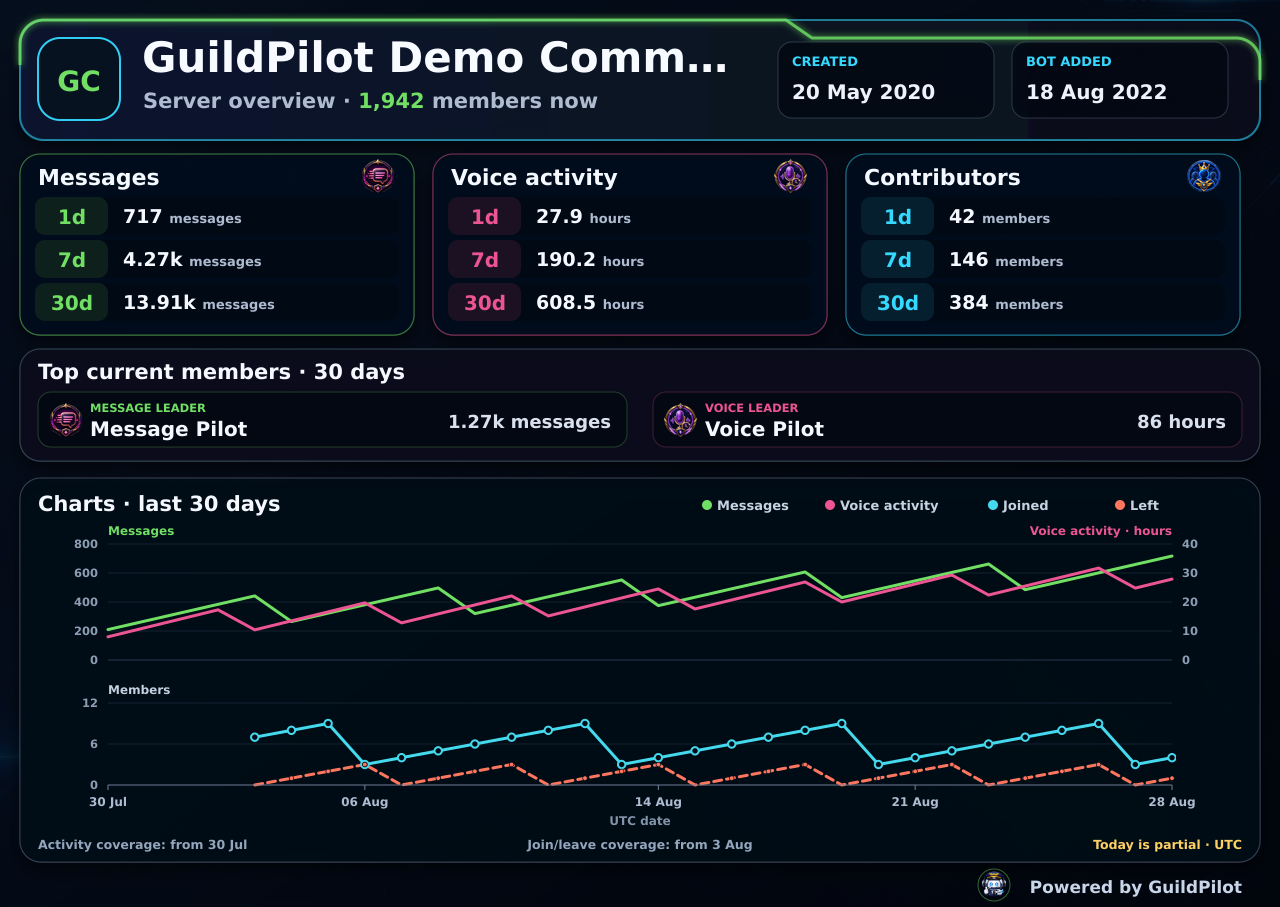
Works only inside this preview. Press Enter to run the example.
/server
How to restrict GuildPilot commands to selected channels
Command channel restrictions help keep member-facing channels focused while preserving a place for GuildPilot commands. You choose blocked channels and, when needed, exception channels that remain usable.
Before you start
- GuildPilot must be installed and visible in the server.
- You need access to that server's GuildPilot dashboard.
- Create the text channels you want to use before configuring the lists.
Restrict commands
1. Open Settings
From Your Discord servers, open the intended server and select Settings.
2. Choose command blocked channels
In Channels, find Command blocked channels. Search for and select every text channel where GuildPilot commands should not run.
3. Add exception channels when needed
Under Command exception channels, select channels that must stay available even when a wider restriction would otherwise block them. Use exceptions for deliberate staff or bot-command areas.
4. Save the channel lists
Select Save changes. The restriction is stored per server and applies when GuildPilot handles a command there.
Recommended configuration
Keep one clearly named staff command channel available before blocking commands elsewhere. Avoid selecting the same channel in both lists; use the exception list only where it expresses an intentional override.
Test the setup
- Use a staff account that can run a harmless command such as
/server. - Run it once in a blocked channel and once in an allowed or exception channel.
- Confirm that the blocked location is rejected and the allowed location receives GuildPilot's response.
- No persistent test data is created.
What a successful setup looks like
GuildPilot commands remain available in your chosen command area and are refused in channels you marked as blocked. The restriction belongs only to the selected server.
Common problems
A channel is missing from the selector
Cause: The dashboard could not refresh Discord channels or the channel was created after the last sync.
Fix: Use Refresh Discord data in Settings, then reload the page and search again.
A command is still unavailable in an exception channel
Cause: Discord command permissions or the command's required moderator permission can still prevent use.
Fix: Check the command's Discord permission requirement and the channel's Use Application Commands permission. Channel exceptions do not grant Discord permissions.