
Try the command response
Type one of the shown commands to replay its current response format with fictional data. Nothing is sent to Discord.
Anyone playing tonight?
GuildPilot removed the ordinary message. Application commands remain allowed.
/server
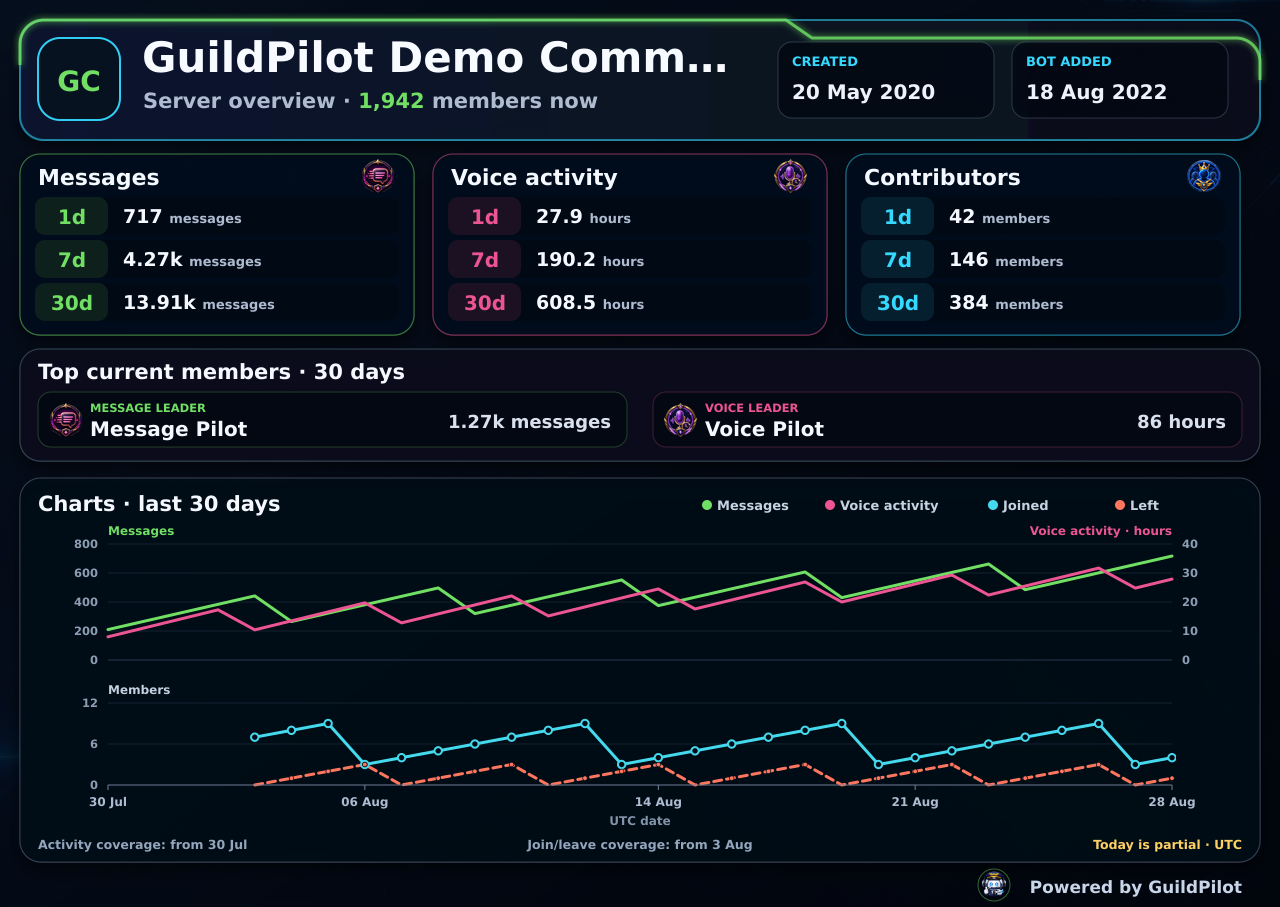
Works only inside this preview. Press Enter to run the example.
/server
How to create a command-only Discord channel with GuildPilot
Command Only removes ordinary member chat while allowing the active GuildPilot bot and selected installed bots. It is useful for a dedicated slash-command area where bot responses should remain readable.
Before you start
- Create the text or announcement channel.
- GuildPilot needs to view the channel, read message history and manage messages.
- Run Settings → Refresh Discord data so installed bots appear in the selector.
Warning: Normal member messages, unselected bot messages and ordinary webhook messages are deleted while this configuration is enabled.
Create a command-only channel
1. Open Command Only
Open Moderation → Channel Settings, select Command Only, then choose New configuration.
2. Choose the restricted channel
Enter a Configuration name and choose the Channel to restrict. The active GuildPilot bot is always allowed.
3. Select other allowed bots
Under Allowed bots, search for and select every installed bot whose messages should remain. Unselected bots are treated as disallowed.
4. Review Discord command access
Confirm that members have Use Application Commands in the channel for the bots they should use. Channel Settings does not grant that Discord permission.
5. Enable and save
Enable the configuration and select Save changes.
Test the setup
- Send a harmless ordinary message from a normal member and confirm it is removed.
- Run an allowed GuildPilot command and confirm that its response remains.
- Trigger one selected secondary bot and confirm that its response remains.
- Remove any surviving test responses when finished.
What a successful setup looks like
The channel contains bot-command interactions and allowed bot responses without ordinary member conversation. The behavior applies only to the selected channel.
Common problems
An installed bot is missing
Cause: The server's bot-member cache is stale or the bot is no longer installed.
Fix: Use Settings → Refresh Discord data, then reopen Allowed bots.
An allowed bot's message is removed
Cause: A different bot identity sent the message or the selected ID changed after reinstalling that bot.
Fix: Refresh Discord data and select the currently installed bot account.
Members cannot run slash commands
Cause: Discord's Use Application Commands permission is denied.
Fix: Adjust the channel's Discord permission overrides for the intended member roles.