
Try the command response
Type one of the shown commands to replay its current response format with fictional data. Nothing is sent to Discord.
/server
Works only inside this preview. Press Enter to run the example.
/server
How to track member activity with GuildPilot
Activity tracking records per-server message and voice totals used by GuildPilot's server overview. It can also send member join and leave notices, highlight newly created accounts and mention trusted roles.
Before you start
- GuildPilot must be installed in the server.
- Enable Server Members Intent for join and leave events.
- Enable Message Content Intent when message-based activity must be counted by the active bot.
- Create a private or staff-facing text channel if join information should not be public.
Warning: Clear all activity removes the stored activity rows for this server. Use it only when you intend to reset those totals.
Set up activity tracking
1. Open Activity
Open the server in GuildPilot and select Activity in the sidebar.
2. Enable activity tracking
Under Activity tracking, turn the ON/OFF control on. GuildPilot begins collecting the supported server activity totals after you save.
3. Choose the member log channel
Under Member logs, select a Member log channel. This is where GuildPilot posts join and leave information.
4. Configure the new-account highlight
Choose Accounts younger than n days under New account highlight. Select Roles to mention only when those roles should be notified about qualifying joins.
5. Save the settings
Select Save changes. The Stored activity summary shows how many members and totals GuildPilot currently holds for this server.
Test the setup
-
From the server owner, an Administrator, a member with Manage Server, or a member holding a configured GuildPilot admin role, run:
/server -
Confirm that GuildPilot posts the server overview publicly in the channel, so everyone there can view it.
-
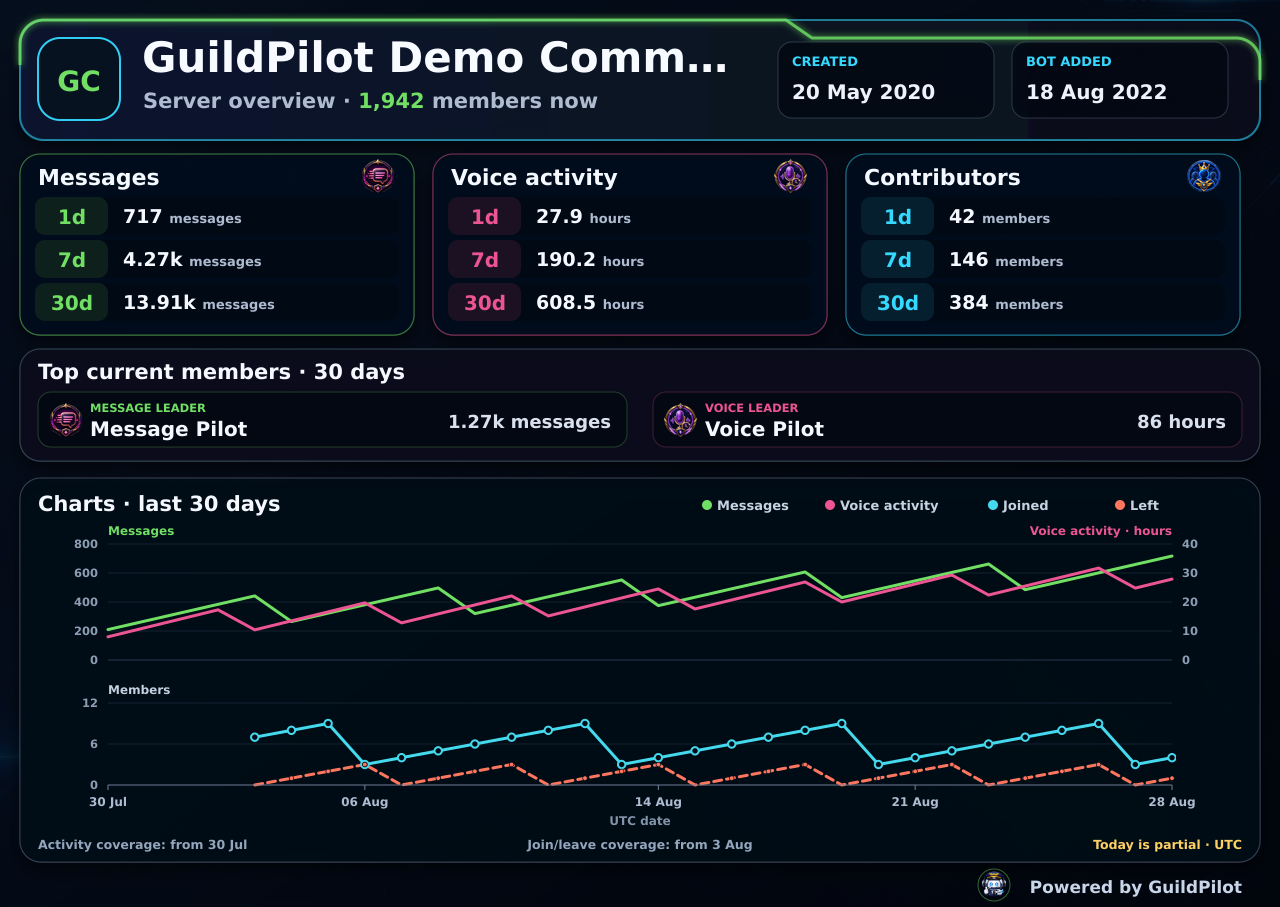
Check the 1d, 7d and 30d message, voice and contributor totals, the current 30-day leaders, and both chart plots. The upper plot shows messages and voice hours; the lower plot shows recorded joins and leaves. Both use labelled axes across the same 30 UTC days.
-
Join with a test account to confirm the member log, new-account highlight and a new join point on a later overview; then remove the account to record a leave.
-
Remove the test log messages if needed; do not use Clear all activity unless you intend to reset the whole server dataset.
What a successful setup looks like
/server posts one public server-wide card with 1d, 7d and 30d message, voice and distinct-contributor totals, current 30-day message and voice leaders, and a 30-day chart. The chart uses separate message/voice and join/leave plots with visible X and Y axes. Today is marked as partial, and dates before activity or join/leave coverage began appear as gaps instead of zero activity. Every card includes the Powered by GuildPilot footer, including Premium and custom-bot responses. The configured member-log channel continues to receive join and leave notices.
Common problems
The server overview has no recent totals
Cause: Tracking was disabled, the event occurred before tracking started, or a required gateway intent is unavailable.
Fix: Keep Activity tracking enabled, check the active bot's intents, and generate a new message or completed voice session before testing again. An ongoing voice session is not counted until it ends.
Join and leave lines contain gaps
Cause: GuildPilot has no recorded member-flow coverage for those dates. It does not infer older joins from the server's current member list.
Fix: This is expected for dates before tracking began. Keep Server Members Intent enabled so future recorded joins and leaves appear.
Join notices are not posted
Cause: Member log channel is not selected, the bot lacks channel access, or Server Members Intent is disabled.
Fix: Select a current text channel, verify its permissions, and enable the member intent for the active bot.
Mention roles do not alert staff
Cause: The role was removed, is not selected, or cannot be mentioned under the channel's Discord permissions.
Fix: Refresh Discord data in Settings, select the current role and review the channel's role mention permissions.