
Try the command response
Type one of the shown commands to replay its current response format with fictional data. Nothing is sent to Discord.
/level
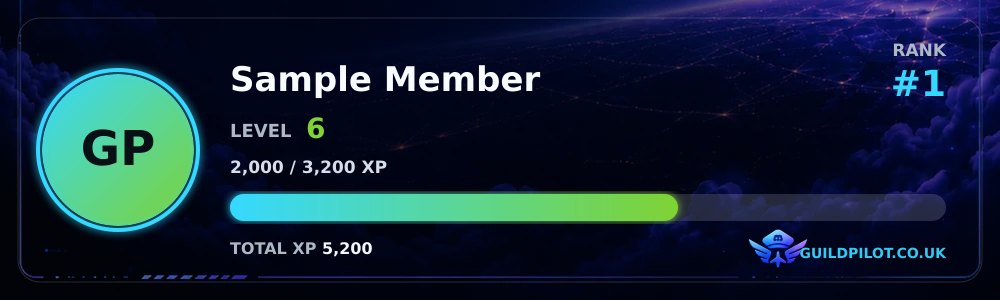
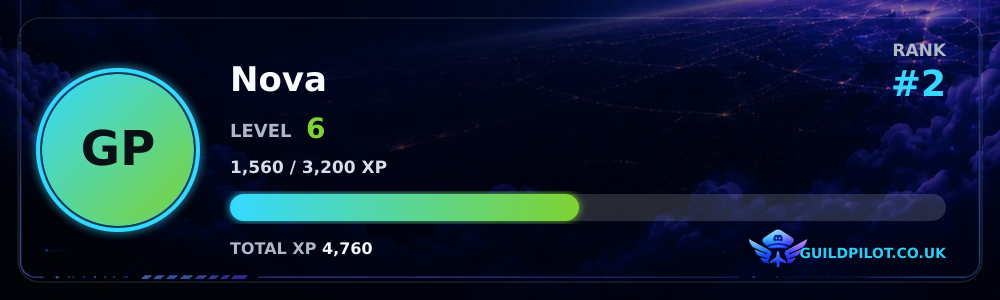
/level user:@Nova
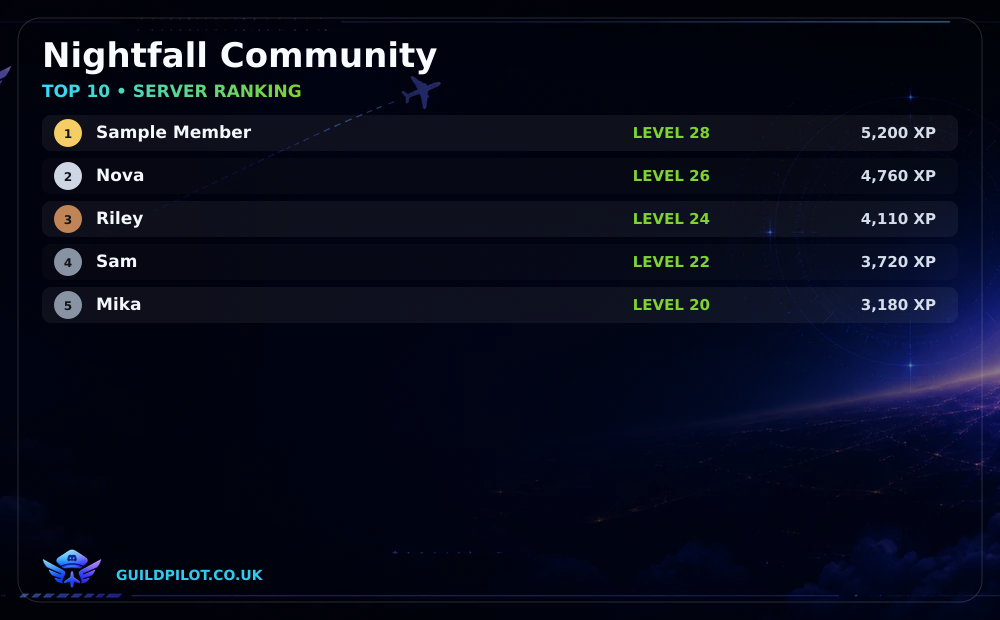
/ranking
Works only inside this preview. Press Enter to run the example.
/level
/level user:@Nova
/ranking
How to customize leveling cards with GuildPilot
Level and ranking cards turn saved XP into images members can view in Discord. Standard servers can schedule automatic ranking posts and use GuildPilot artwork and branding, while active Premium Pilot access unlocks custom colours and uploaded backgrounds.
Before you start
- Configure and enable server leveling.
- Activate Premium Pilot for custom colours or backgrounds.
- Prepare a JPG, PNG or WebP background under 5 MB when uploading custom artwork.
Warning: Use artwork you are allowed to publish. Check that a background does not expose private server or member information before uploading it.
Customize leveling cards
1. Choose visible level-card components
Open Leveling → Level card. Under Visible components, choose whether to show Avatar, XP progress bar, Level, Current level XP, Nickname, Total XP and Leaderboard ranking.
2. Configure level-card appearance
Under Card appearance, active Premium servers can set Primary colour, XP accent colour and Custom background. Select Update and review the preview.
3. Configure and schedule the ranking card
Return to Leveling and open Ranking card. Choose a public text or announcement channel, then select Daily, Weekly or Monthly automatic posts. Daily posts run every day, weekly posts run every Sunday, and monthly posts run on the last day of the month. GuildPilot always posts at 6:00 PM UK time and follows GMT/BST automatically.
Leave Post a new message each time selected when every scheduled ranking should appear as a fresh Discord message. Switch to Edit the latest ranking message to keep the newest scheduled ranking post updated in place. The first scheduled run creates that message if one is not already remembered, and GuildPilot automatically posts a replacement if it was deleted. Changing the ranking channel starts a new message in the new channel without deleting the old channel's post.
You can also apply the available visual choices to the Top 10 card shown by /ranking and review its preview.
4. Check the branding state
Standard servers use the GuildPilot background, brand colours and branding. If Premium pauses, the saved custom theme is retained and returns when Premium becomes active again.
5. Save both pages
Save the Level card and Ranking card pages after their previews show the intended contrast and readable text.
Recommended configuration
Choose a high-contrast accent for the XP bar and avoid detailed backgrounds behind names or totals. Check both a short and long nickname if your community uses varied display names.
Test the setup
- Run
/levelfor a member with XP and inspect the attached level-card image. - Run
/rankingand inspect the Top 10 image. - Confirm the Ranking card page shows the intended channel, message delivery mode, frequency and next post time.
- Confirm that text is readable on desktop and mobile Discord clients.
- Remove a temporary uploaded background in the dashboard if it was used only for testing.
What a successful setup looks like
/level and /ranking return images that match their saved previews. When automatic posting is enabled, the current Top 10 card appears in the selected channel at 6:00 PM UK time on the configured cadence, either as a new message or as an update to the latest scheduled post. Premium colours and backgrounds appear while access is active, and standard branding remains available without Premium.
Common problems
Custom colours cannot be edited
Cause: Premium Pilot is not active for this server.
Fix: Activate Premium Pilot or continue using the standard GuildPilot card design.
The background upload is rejected
Cause: The file is not JPG, PNG or WebP or is 5 MB or larger.
Fix: Export a supported image below 5 MB and upload it again.
A member card has no data
Cause: The member has not earned XP or leveling is disabled.
Fix: Enable leveling, generate an eligible activity event, then run /level again.
The ranking card was not posted
Cause: Leveling or automatic ranking posts are disabled, the destination channel is unavailable, or GuildPilot cannot send attachments there.
Fix: Enable Leveling and automatic posts, reselect the channel, and give GuildPilot permission to view the channel, send messages and attach files.