
See the Discord result
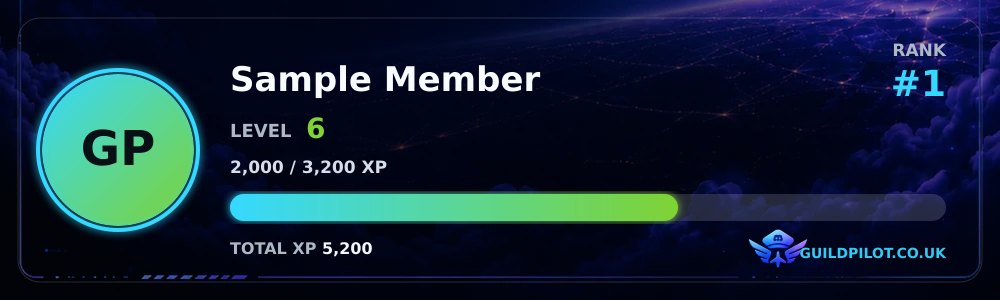
A fictional example based on GuildPilot's current behaviour. Nothing is sent to Discord.
🎉 @sample-member reached level 10 in Nightfall Community!
How to send level-up announcements with GuildPilot
Level-up announcements notify a Discord channel when a member reaches a new level. The message can include supported member and server placeholders and an optional copy of the member's level card.
Before you start
- Enable and configure server leveling.
- Create a text or announcement channel where GuildPilot can send messages.
- Configure level rewards first if the message should name a newly granted reward role.
Set up level-up announcements
1. Open Level-up announcement
Open Leveling and select Level-up announcement.
2. Choose the announcement channel
Select Announcement channel. GuildPilot requires a valid synced text destination before announcements can be enabled.
3. Write the message content
Under Message content, use the provided placeholders for Member mention, Nickname, New level, Level XP, XP needed, Total XP, Server rank, Reward role or Server name. Keep the message understandable when an optional value is empty.
4. Choose whether to attach the card
Enable Attach the member's level card when the image adds useful context. Review the Discord Components V2 preview.
5. Enable and save
Turn on Send level-up announcements and select Save changes.
Recommended configuration
Use one dedicated celebration channel in busy servers. Mention the member, new level and any reward role in a short first line; attach the card when members benefit from seeing progress and rank.
Test the setup
- Use a test member close to its next configured threshold.
- Generate an eligible message or voice XP event that crosses the level boundary.
- Confirm that the chosen channel receives the message and optional card.
- Remove the announcement message if it was created only for testing.
What a successful setup looks like
Crossing a level threshold posts one message in the selected channel. Saved placeholders resolve to that member's current values, and the card appears only when enabled.
Common problems
Announcements cannot be enabled
Cause: No valid Announcement channel is selected.
Fix: Choose a synced text or announcement channel, then enable the setting and save again.
A placeholder remains visible in the message
Cause: The placeholder was typed incorrectly or is not supported by this editor.
Fix: Insert a value from the placeholder list shown beside Message content.
The member earns XP but no announcement appears
Cause: The event did not cross a level threshold, announcements are disabled, or GuildPilot cannot send to the channel.
Fix: Check the member's current level with /level, confirm the setting, and review the destination channel permissions.