
Try the command response
Type one of the shown commands to replay its current response format with fictional data. Nothing is sent to Discord.
Active bot: Shadow Pilot · powered by GuildPilot
/setup
Open GuildPilot for Nightfall Community: https://guildpilot.co.uk/dashboard
Works only inside this preview. Press Enter to run the example.
/setup
Open GuildPilot for Nightfall Community: https://guildpilot.co.uk/dashboard
/server
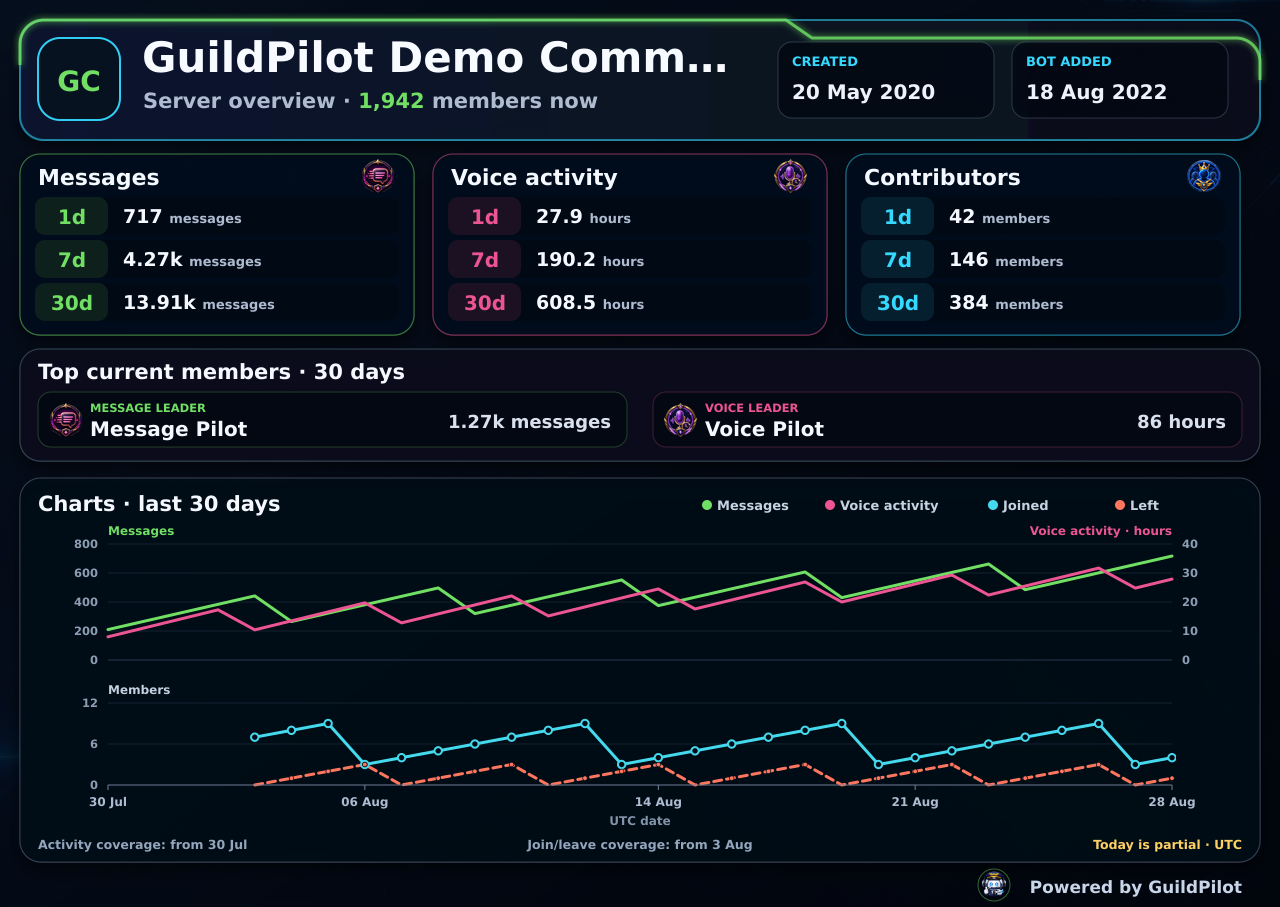
How to set up a custom GuildPilot bot for your server
Premium Pilot can run GuildPilot through a Discord bot application owned by your community. You will connect the application, choose its public identity, invite it to the selected server and check that its slash commands are available.
Before you start
- Premium Pilot must be active for the server.
- You must own the Discord server to configure its custom bot.
- Create a Discord application in the Discord Developer Portal.
- Keep GuildPilot and the Developer Portal open in separate tabs.
Warning: A bot token grants control of that bot account. Paste it only into GuildPilot's Bot token field, never into Discord chat, a screenshot or a support message.
Set up the custom bot
1. Copy the Application ID
In the Developer Portal, open your application and select General Information. Copy Application ID. In GuildPilot, open the server and select Custom bot, then paste the value into Application ID.
2. Create and copy the bot token
In the Developer Portal, select Bot. Create the bot user if Discord asks, then use Reset Token or View Token and copy the displayed token. Paste it into GuildPilot's Bot token field before leaving the Discord page.
3. Enable only the required intents
On Discord's Bot page, open Privileged Gateway Intents. Enable Server Members Intent for joins, welcome and member-based features. Enable Message Content Intent for message activity and channel rules that inspect ordinary messages.
4. Configure the public identity
In GuildPilot, choose Bot status, Type of activity, optional Activity text, Bot username, and optional profile images or description. The Discord profile preview updates before anything is saved.
5. Save and invite the custom bot
Select Save custom bot. GuildPilot verifies that the token belongs to the supplied application. After saving, select Invite custom bot and approve the server-locked Discord authorisation.
6. Wait for the custom bot and verify commands
Wait briefly for the custom bot to connect. In Discord, confirm that the bot appears online and type / to check that GuildPilot commands are available.
7. Remove the base bot only after verification
After the custom bot works, you may remove the base GuildPilot bot so members see only the custom identity. Do not remove it before the custom bot is connected and responding.
Recommended configuration
Start with the standard GuildPilot artwork, confirm the connection, then change profile images. Enable only the gateway intents required by the modules you actually use.
Test the setup
- Run
/setupwith an account that has Manage Server. - Open the private dashboard link and confirm it points to the same server.
- Run one non-destructive command such as
/serverwith an authorized staff account. - Remove any temporary profile image or activity text you added solely for the test, then select Save custom bot again.
What a successful setup looks like
The custom bot is present in the intended server, shows the saved profile and status, and serves GuildPilot slash commands. GuildPilot's Custom bot page reports the configured identity rather than No custom bot is configured yet.
Common problems
Application ID does not match this bot token
Cause: The Application ID and token came from different Discord applications.
Fix: Open one application in the Developer Portal and copy both values from that same application.
The bot remains offline
Cause: The token was reset, the bot was not invited to this server, or GuildPilot could not authenticate it.
Fix: Confirm the server invitation, paste the current token, and select Save custom bot again. If Discord reset the token, the saved old value no longer works.
A feature cannot see members or message content
Cause: Its required privileged intent is disabled.
Fix: Enable the matching intent on Discord's Bot page and in GuildPilot's runtime configuration, then reconnect the custom bot.